
Log-Extracts
This is to provide the access logs of requests received for your domains at Nitrogen Edge servers. You can apply filters and get the logs for a specific domain(s) for the required timeframe.
Steps#
Click on your
ACCOUNTname at top-right corner to open account-level features.Click on
Logs Extracts. “Refresh” - To update the requested logs status as it will take some time to process once requested.
Click on “New log Extraction Request” to initiate the log request.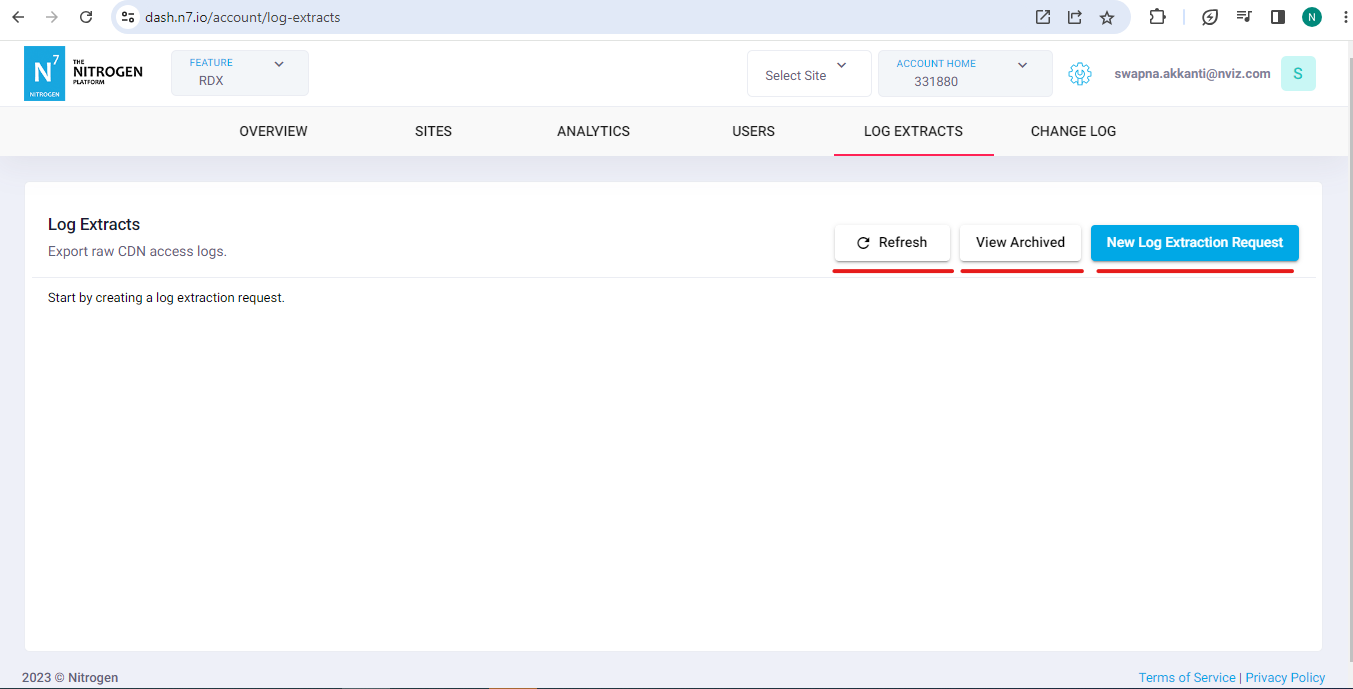
Click on
New log Extraction Requestbutton. Provide required details:Domains: Domains of which the logs should be exportedFilter By status Codes: Response status codes of which the logs should be exportedSelect timezone for input date selection: Default is UTC. Select the timezone which you want to use while selecting the timespan (From and To). Usually you may want to set it to your local timstamp like IST to select span of some incident.From Date: Start of the timespan (Only 45 days of timespan can be selected)To Date: End of the timespan (Only 45 days of timespan can be selected)Columns: Extra columns to be exported in logs:Timestamp: Timestamp of the request log rowCache Status: Cache status of the requestResponse Code: HTTP response code received from the origin serverHost: Domain host of the requestMethod: HTTP method of the requestURL: URL of the the requestClient IP: Actual user’s IP which made the requestCountry: User’s country from which the request was madeReferer: Request’s referrerUser Agent: User-agent of the requestor’s device
Override timezone in Log Export: Enable it if you wish to convert exported log’s timezone to something else e.g. your local timezone like IST.Timezone for Log Extract: Default is UTC. Select the timezone which should be used in the exported data. It will convert the timezone of logs.Estimate Query Cost: It will show you the billing cost that will occur for this operation. Usually it will depend on the amount of data being requested, so will depend on the timespan, number of domains, number of columns. It is set as per fair-usage-policy to avoid misuse/abuse of the facility, and usually it will not be added to your bill.
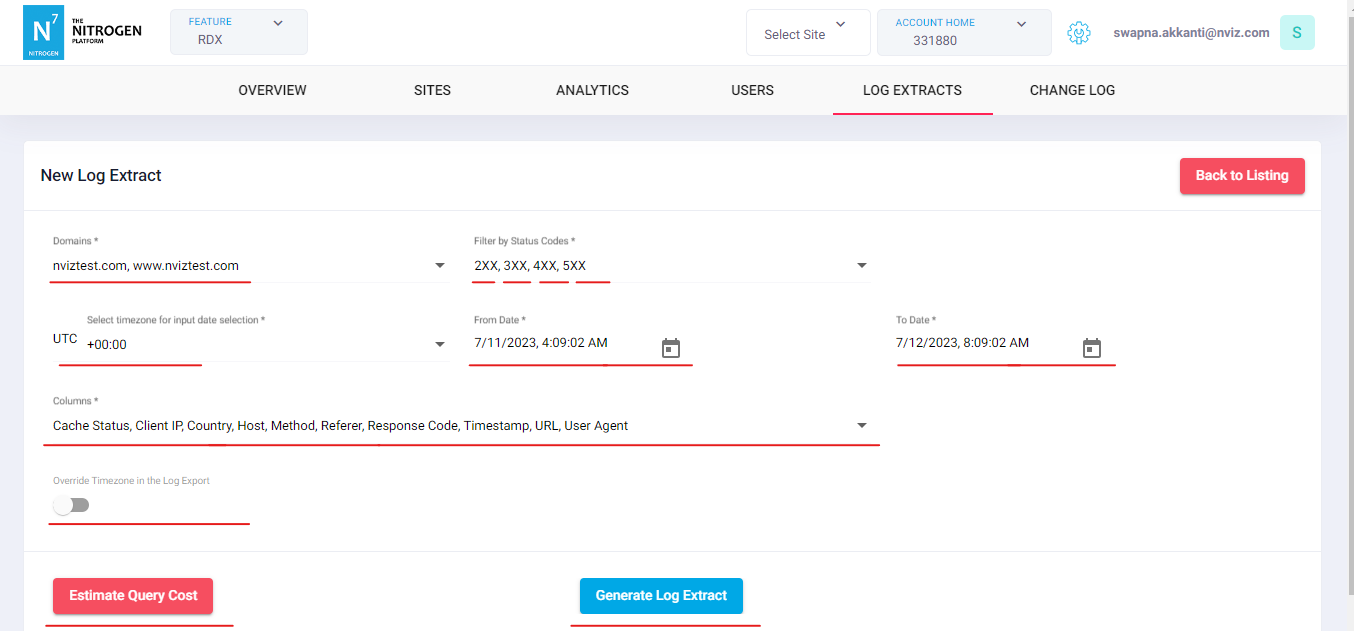
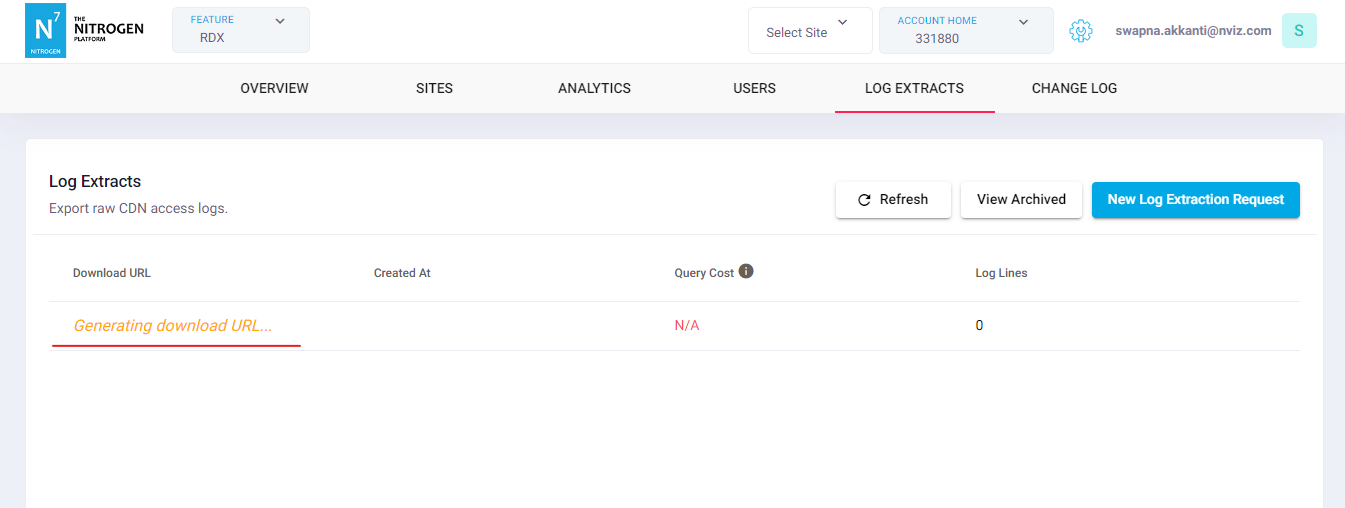
Click on “Generate Log Extract”. It will create a log request and show the status of the log request.
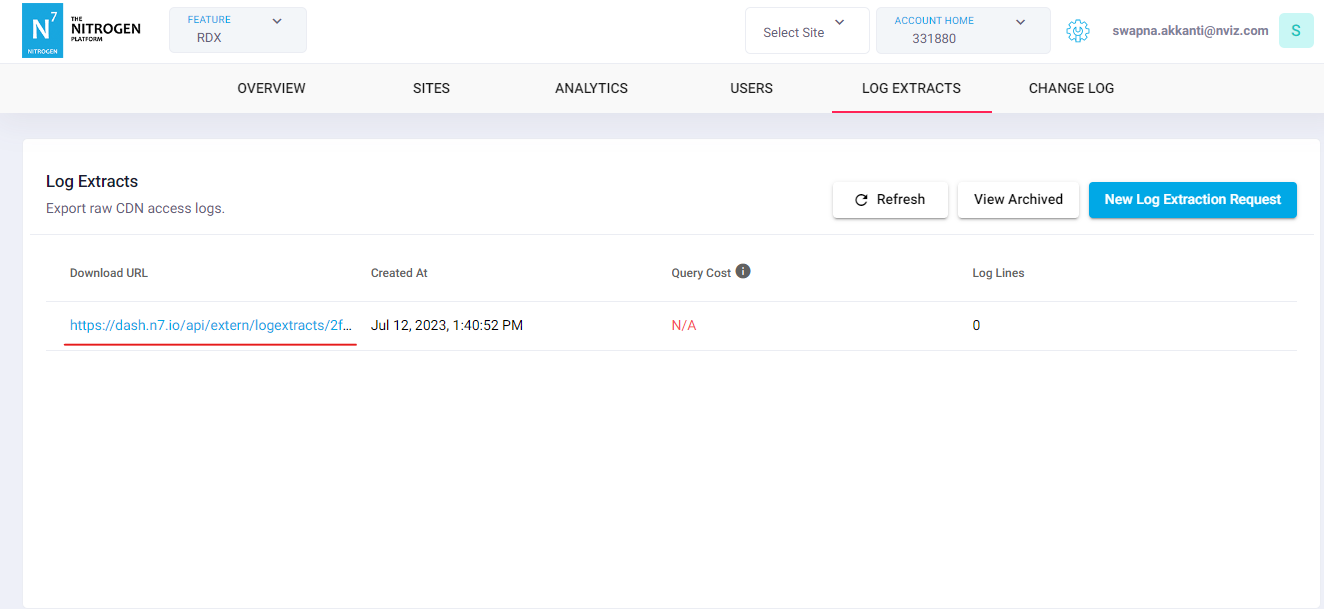
You will see the logs once ready and available to download.
Notes#
These logs are not real-time. It can take up to 45 minutes to 1 hour to sync in systems to be available in readable format.
The extracted logs will remain available for 7 days only.
You may see additional call for POST call if WAF is enabled. This is by the Nitrogen architecture.