
Media-Library
The Media Library in the N7 Dashboard provides a centralized location to upload, organize, and manage image assets stored in N7 Storage. Uploaded images can then be accessed using their generated URLs for use across your website or applications.
For demo purpose, we will be using www.nviztest.com domain as an example.
The Media Library displays all uploaded images and folders, along with details such as:
- File/Folder Name
- Last Modified Time (UTC)
- Uploaded By
- File Size
Prerequisite#
- You must have your domain registered on Nitrogen.
- You must have AIO enabled on your domain, along with
N7 StorageandMedia Libraryfeatures. Refer this article if not done already.
Steps#
Media Library#
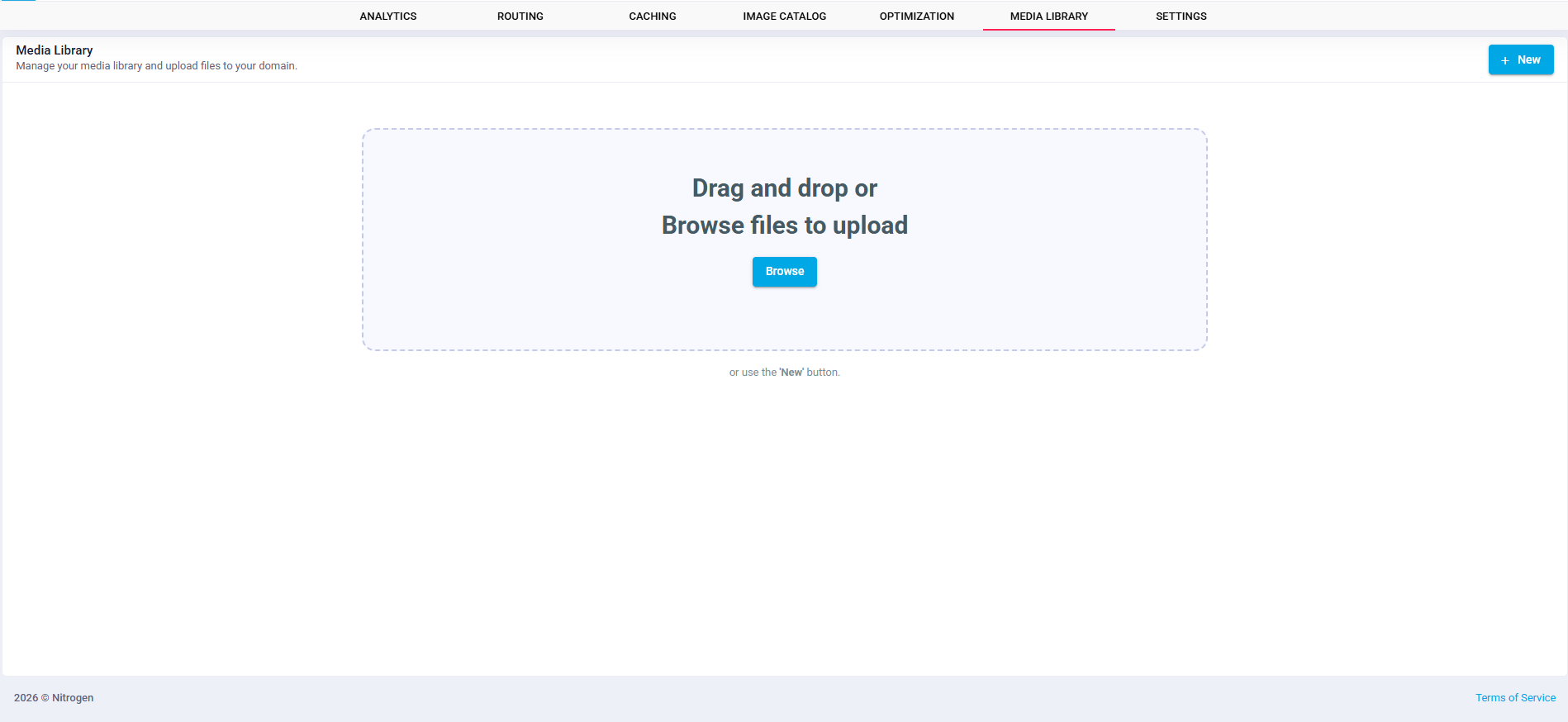
- Click
Browsein the upload area. - Select one or more image files from your local system.
- Click
Upload File(s)to upload the selected images. - Or Simply drag and drop image files or folders into the upload area. This is the quickest method for uploading multiple images or folders at once.
- Or Click the
+ Newbutton in the top-right corner to:- Upload image files
- Upload folders containing images
- Create a new folder to organize your media
Uploading Images#
- When uploading images, the upload panel displays:
- Drag-and-drop upload area
- Browse button for selecting files
- Current storage utilization
- Upload and Cancel actions
This allows users to monitor their available storage before uploading new images.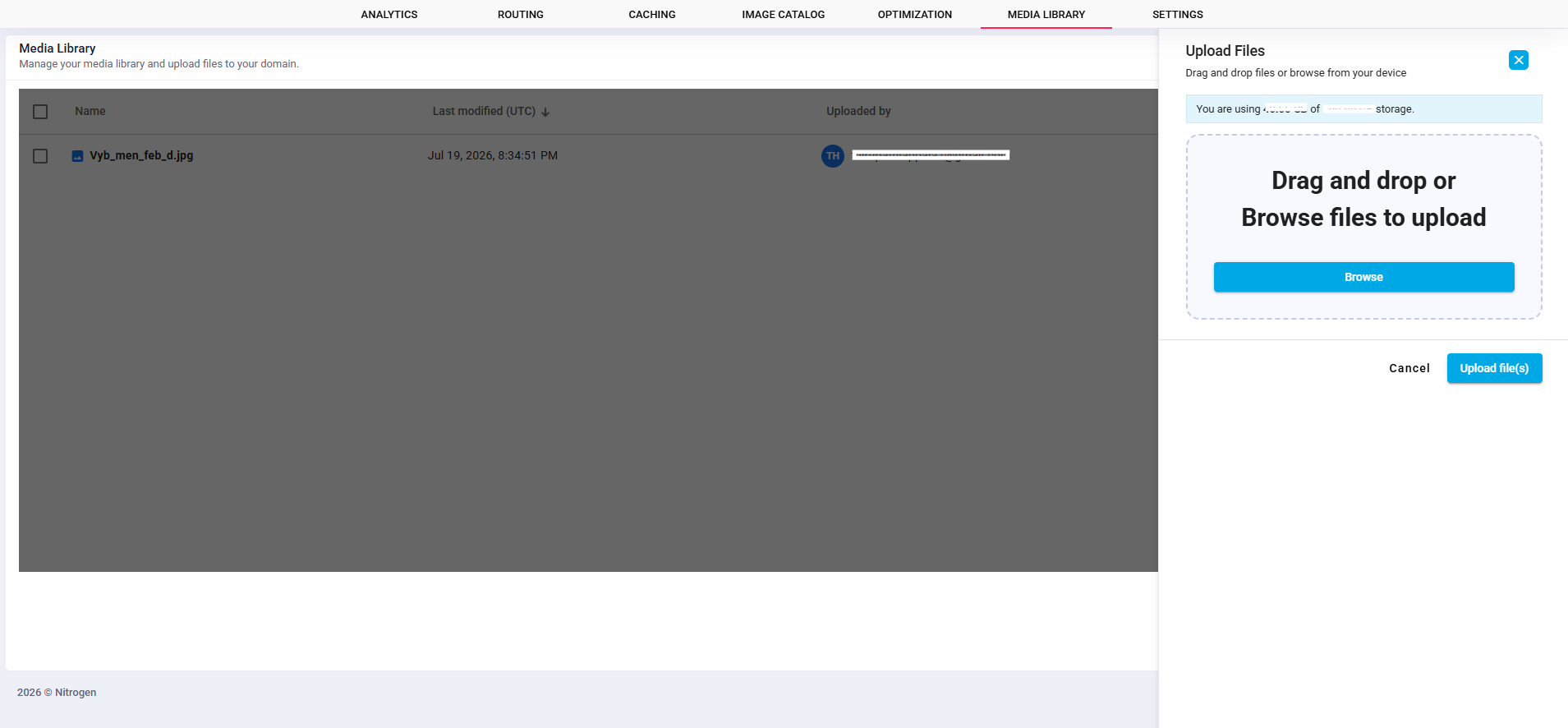
Managing Uploaded Files#
- After the upload is complete, all files and folders are listed in the Media Library.
- For each uploaded item, users can:
- View image and folder details
- Organize images inside folders
- Copy the image URL/link for use in applications or websites
- Modify or manage uploaded files using the available actions menu
The Media Library also provides list and grid view options for easier navigation.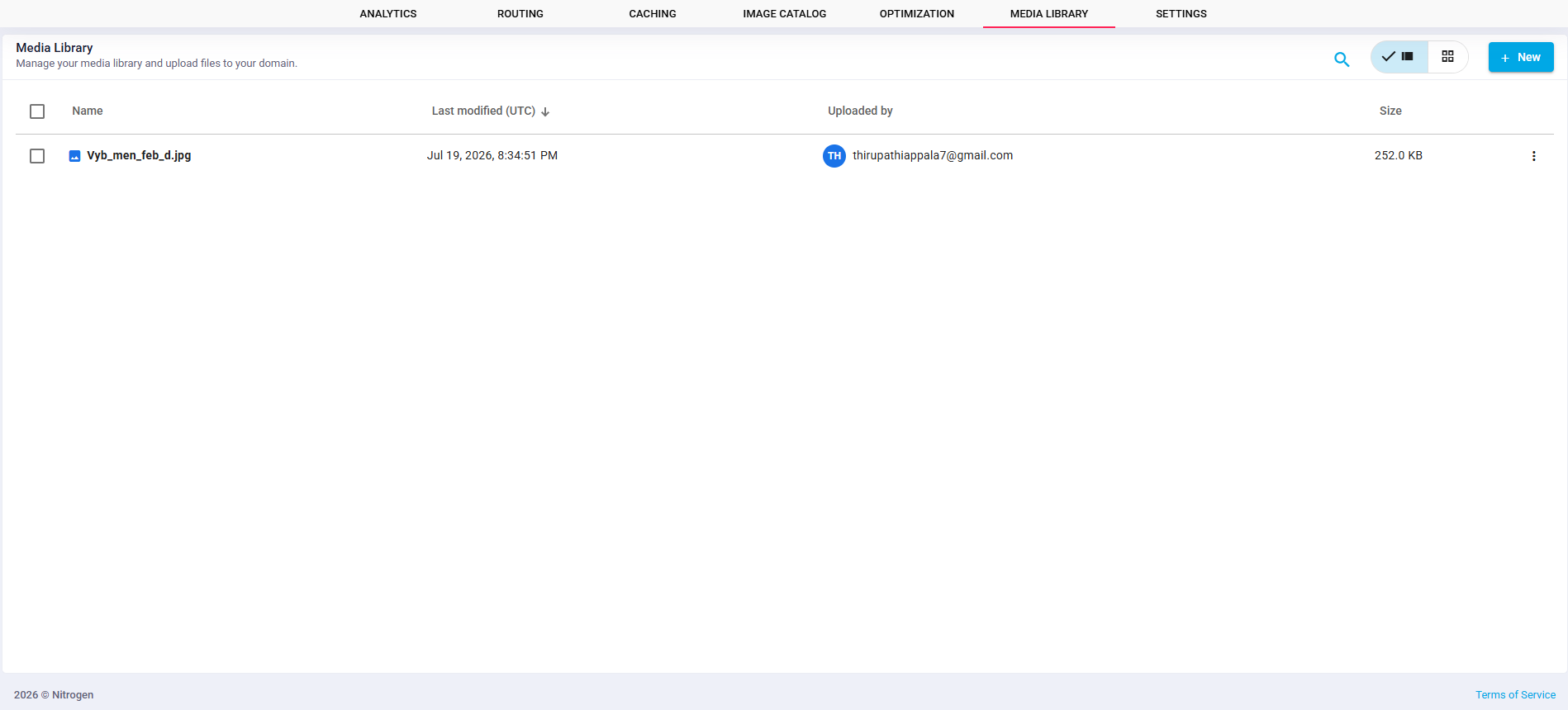
Managing Uploaded Files#
To keep assets organized:
- Create folders using the New button.
- Upload images directly into existing folders.
- Browse folders to access their contents.
This helps maintain a structured media repository for large numbers of assets.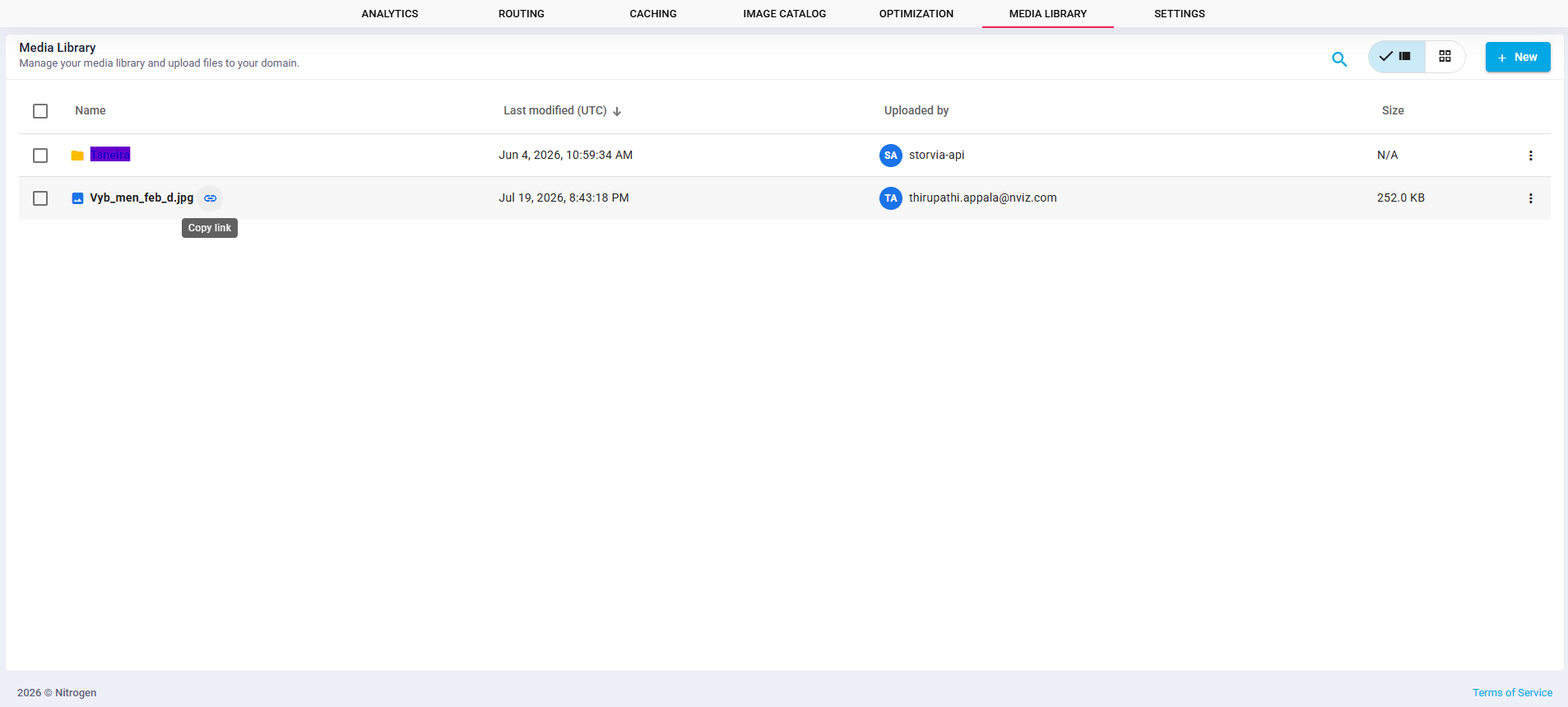
Copying Image URL#
Each uploaded image provides an option to copy its URL. The copied URL can be directly used in:
- Web pages
- Applications
- Product catalogs
- Any integration requiring an image hosted on N7 Storage
Notes#
- Only image files are supported for upload.
- Users can upload individual images as well as folders containing images.
- Images can also be uploaded by simply dragging and dropping them into the Media Library.
- The upload dialog displays the current N7 storage usage before uploading.
- Uploads are permitted only if sufficient storage is available within your allocated N7 storage quota.
- If your allocated storage is exhausted, please contact the N7 Support team to request additional storage capacity.