
2 Factor Authentication
Follow these steps to configure Nitrogen 2 Factor Authentication (Fly Auth) on the desired URLsTypical use-cases are:
- admin pages
- reports section
Note: For demo purpose, we will be using www.nviztest.com domain as an example. Here, we will be configuring 2FA on WordPress admin panel pages.
Prerequisite#
- You must have a domain configured on Nitrogen.
- For this example to work, you should have created URL pattern based condition for WordPRess pattern
^(/wp-admin.php|/wp-admin/.*). If not set, you can refer this article for the same.
Steps#
Click on
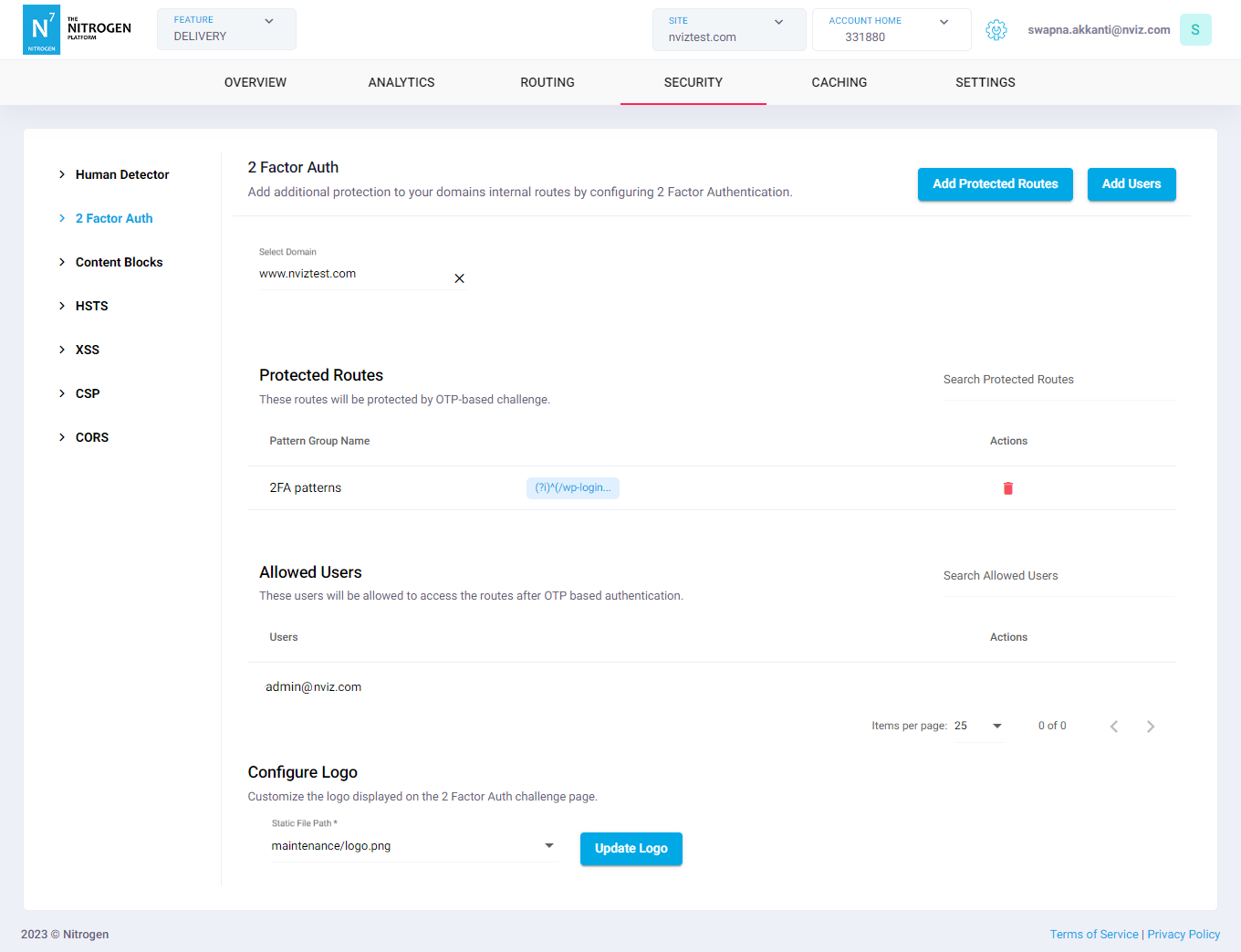
Securitymenu, then select2 Factor Authtab. Select appropriate domain from the domains dropdown.Click on
Add Protected Routesbutton at top right corner. You will be taken to a screen to provide a URL pattern on which 2FA will be configured.Provide the required details:Request Pattern Group Name: Select the pattern on which you wish to set 2FA.Here, for the example, select the URL pattern you had created for WordPress admin panel URLs.Click on
Savebutton. The configured pattern will be showed inProtected Routeslist.Note: This change will only take effect when deployed. Saving them will only be saving them in draft. Please refer documentation about Deploy process for it.
Click on
Add Usersbutton at top right corner. You will be taken to a screen to provide e-mail-address of the User which can access the protected URLs. Provide the required details:User Email: Add the e-mail-address of the user that can access the selected protected pattern.Click on
Savebutton. The given user’s e-mail-address will be showed inAllowed Userslist.Note: This change will take effect immediately. There is no need of deployment.
Configure Logo: You can select here the static-file path for the logo-image. It will be shown on the 2FA screen where use wil enter OTP.Note: This is not a mandatory step. If you wish to create the static route, please refer documentation about Static content .
So now, whenever any user accesses the Protected Route, they will be shown a screen to enter OTP. If user is from the Allowed Users list, they will receive an e-mail from Nitrogen Support containing the OTP. Once entered, user will be taken to the actual page they were accessing:
2 Factor Auth page: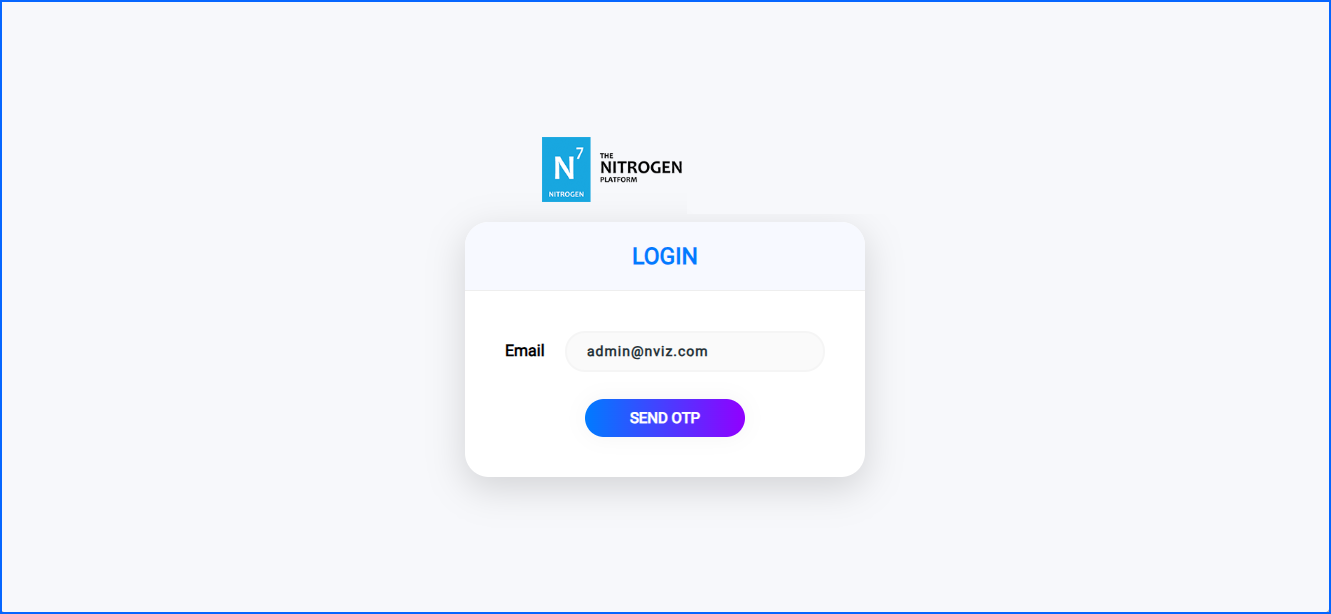
Example E-Mail with OTP: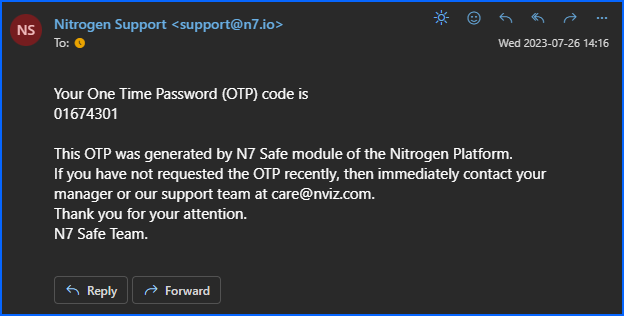
2 Factor Auth page: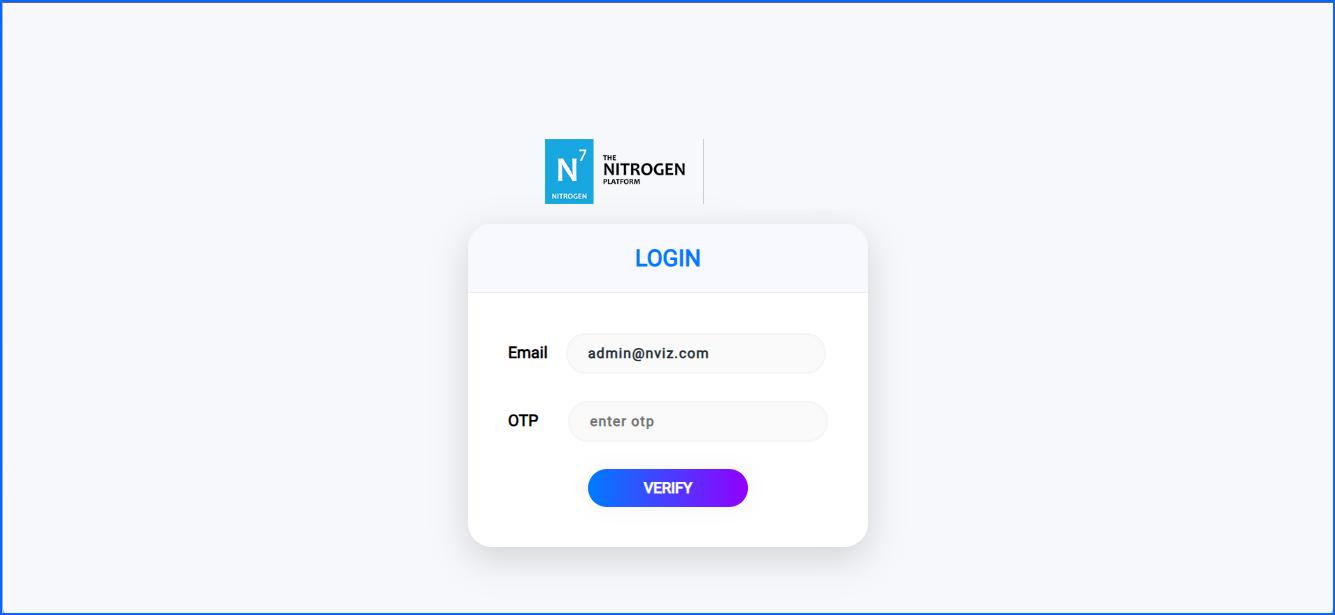
Notes#
- Please configure 2FA for the paths that do not intersect each other.
e.g.^/admin/oms/.*and^/admin/.*
Here^/admin/.*also contains^/admin/oms/.*. Therefore, on accessing any^/admin/.*pattern 2FA will come into the play irrespective of if it is from^/admin/oms/.*.